Cách đến Change Văn bản đến Uppercase hoặc Lowercase Miễn ph
Paste văn bản, click UPPERCASE, lowercase, Sentence case hoặc Title Case, và copy result. A miễn phí case converter that keeps của bạn văn bản on của bạn devic
Đăng ngày · 4 phút đọc
To change văn bản đến uppercase hoặc lowercase, paste it into free case converter, click UPPERCASE hoặc lowercase, then click Copy. It also does Sentence case, Title Case và a few fun styles. There's no retyping, no sign-up, và văn bản never leaves của bạn device, so it's fine cho emails, documents và anything private.
The most common reason people need this: they typed a paragraph với Caps Lock on, hoặc copied a heading that's ALL IN CAPITALS và need it in normal sentence form. Retyping là slow và introduces typos. A case converter fixes it in one click.
Cách đến do it
- Mở free case converter.
- Paste hoặc type của bạn văn bản into box.
- Nhấp case bạn want. The văn bản in box changes straight away.
- Nhấp Copy, then paste it wherever bạn need it.
The buttons change văn bản in same box, so bạn có thể click another case đến try it. Lowercase và Sentence case có thể't restore capitals they removed, so keep của bạn original handy và paste it again nếu bạn want đến start over.
Which case đến choose
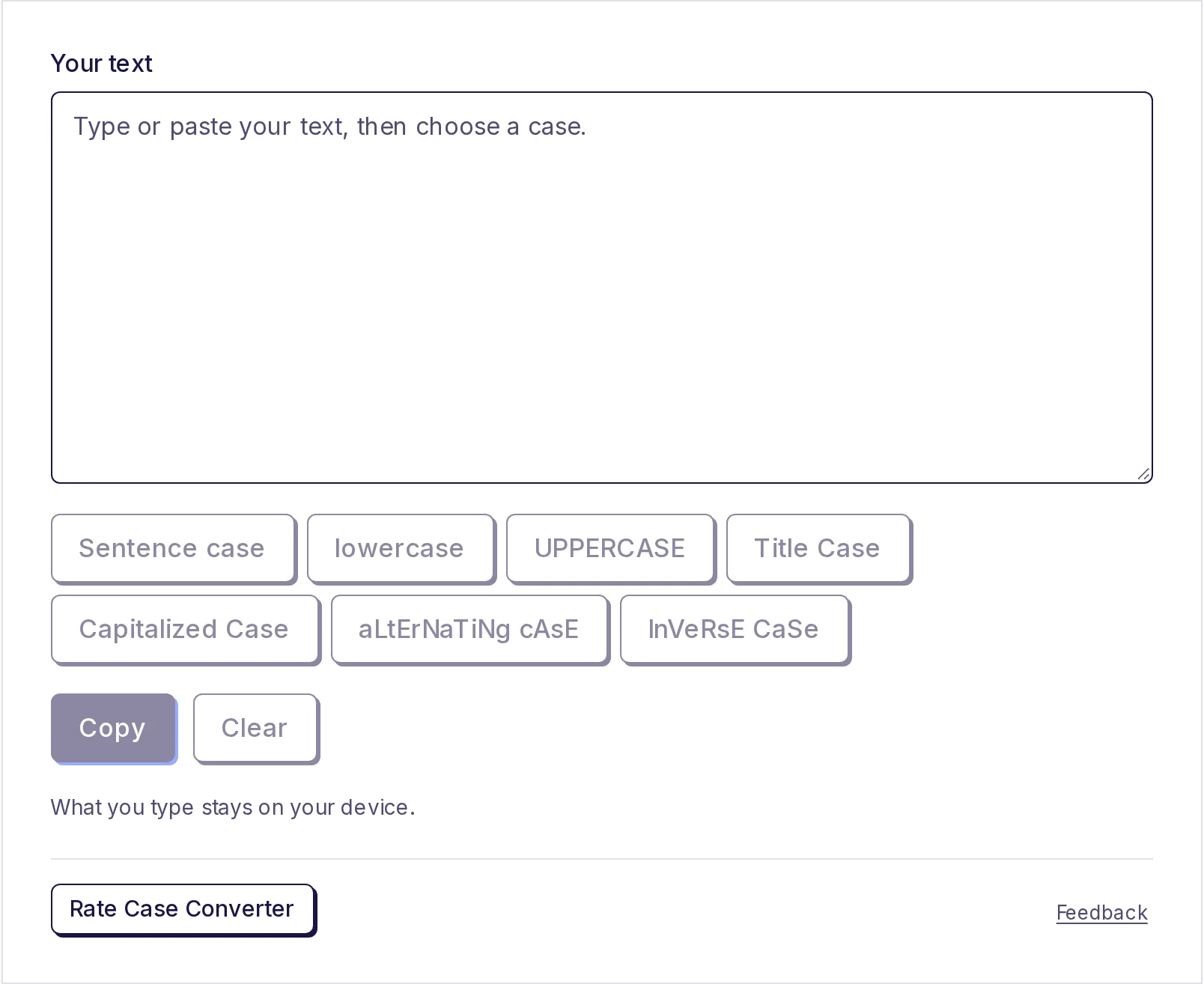
The converter has seven buttons. Here's what each one does đến same sentence, " quick brown fox. it jumps over lazy dog":
| Button | Result |
|---|---|
| Sentence case | The quick brown fox. It jumps over lazy dog |
| lowercase | quick brown fox. it jumps over lazy dog |
| UPPERCASE | THE QUICK BROWN FOX. IT JUMPS OVER THE LAZY DOG |
| Title Case | The Quick Brown Fox. It Jumps Over Lazy Dog |
| Capitalized Case | The Quick Brown Fox. It Jumps Over The Lazy Dog |
| aLtErNaTiNg cAsE | tHe QuIcK bRoWn FoX. iT jUmPs OvEr ThE lAzY dOg |
| InVeRsE CaSe | flips every letter: capitals become small và small become capitals |
Sentence case là one đến reach cho khi fixing văn bản typed với Caps Lock on. It makes everything lowercase, then capitalises first letter of each sentence và each new line. It also turns a lone "i" into "I".
Title Case capitalises main words but keeps short words such as "a", "và", "of", "" và "đến" lowercase, unless they start hoặc end line. That's how most headlines và book titles là written. The rules differ between style guides; see title case rules cho details.
Capitalized Case capitalises every single word, including "" và "of". Some people want this cho names in a list hoặc cho labels.
Điều gì đến check afterwards
A case converter works letter by letter. It doesn't know which words là names hoặc acronyms, so a quick read-through là worth it:
- Names và places. Sentence case và lowercase make everything small, so "Priya visited Delhi" in all caps becomes "Priya visited delhi". Put capitals back on names.
- Acronyms. Every case except UPPERCASE flattens them: Title Case và Capitalized Case turn "NASA" into "Nasa" và "PDF" into "Pdf", và Sentence case hoặc lowercase turn "PDF" into "pdf". Fix these by hand.
- Brand names với unusual capitals, like "iPhone" hoặc "eBay", need fixing too.
The quickest way: run converter, then scan result cho names và short capitalised abbreviations.
Other ways đến change case
You có thể also change case inside some programs bạn may already use:
- Microsoft Word: select văn bản và press Shift+F3 đến cycle through lowercase, UPPERCASE và capitalised words, hoặc use Change Case button (Aa) on Home tab.
- Google Docs: select văn bản, then Format > Văn bản > Capitalization.
- Excel và Google Sheets: formulas
=UPPER(A1),=LOWER(A1)và=PROPER(A1)change case of a cell.
These là handy khi bạn're already in that program. The case converter works anywhere, including on a phone, và cho văn bản từ any source: emails, chat messages, PDFs, websites hoặc code comments.
Fixing văn bản copied từ a PDF
Văn bản copied từ a PDF often arrives in capitals và broken into short lines. Fix line breaks first với free line break remover, then paste result into case converter và click Sentence case. The guide on removing line breaks from copied text walks through first step.
When đến use all caps
All caps reads as shouting in messages và là harder đến read in long passages, because every word has same rectangular shape. It still has good uses: short labels, warnings like "DO NOT REMOVE", form fields that ask cho block capitals, và some legal headings. For anything longer than a line, sentence case là easier on reader.
Nếu bạn need đến count của bạn văn bản after fixing it, cho a form hoặc a post với a limit, free word counter counts words và characters as bạn type.
Change case now
Paste của bạn văn bản into free case converter, click case bạn want, và copy it. It's miễn phí và works on any device.
Câu hỏi thường gặp
- Làm thế nào để change all caps đến normal văn bản?
- Paste văn bản into case converter và click Sentence case. It makes everything lowercase và puts a capital at start of each sentence.
- Làm thế nào để change lowercase đến uppercase?
- Paste văn bản và click UPPERCASE, then click Copy.
- Vì sao did my names lose their capitals?
- The converter changes every letter same way và có thể't tell a name từ an ordinary word. After using Sentence case hoặc lowercase, put capitals back on names và places.
- Điều gì's difference between Title Case và Capitalized Case?
- Title Case keeps short words like "và", "of" và "" lowercase in middle of a line. Capitalized Case capitalises every word.
- Is my văn bản saved anywhere?
- No. The case là changed on của bạn device, và của bạn văn bản là never uploaded.
Công cụ văn bản
Dùng thử Đổi chữ hoa chữ thường
Miễn phí, không cần đăng ký, chạy trên trình duyệt. Dán văn bản và đổi sang CHỮ HOA, chữ thường, Viết hoa đầu câu, Kiểu Tiêu Đề hoặc Viết Hoa Mỗi Từ chỉ với một cú nhấp, rồi sao chép.
Cũng hữu ích
- Đếm từDán hoặc nhập văn bản để đếm từ, ký tự (có và không có dấu cách), câu và đoạn ngay khi gõ, cùng thời gian đọc, thời gian nói và các từ dùng nhiều nhất. Không cần nhấn gì: các con số cập nhật trực tiếp. Những gì bạn nhập chỉ nằm trên thiết bị của bạn.
- Xóa ngắt dòngDán văn bản sao chép từ PDF, email hoặc trang web và xóa các ngắt dòng không mong muốn chỉ trong một bước. Nối tất cả thành một dòng, giữ ngắt đoạn, hoặc nối các dòng bằng dấu phẩy hay ký tự phân cách bất kỳ, đồng thời dọn dấu cách thừa.