Cách đến Compress a PDF cho Email (Miễn phí)
Shrink a PDF that's too big đến attach by compressing scans và photos inside it. Văn bản stays sharp. Miễn phí cho PDFs up đến 50 pages.
Đăng ngày · 5 phút đọc
Nếu a PDF là too big đến email, compress it: open Compress PDF, choose tệp, leave level on Recommended, click Start và download smaller copy. Scanned documents và PDFs full of photos often shrink by more than half, while typed văn bản stays exactly as sharp. Compress PDF là miễn phí cho PDFs up đến 50 pages; Pro handles bigger files, và miễn phí workarounds below often do job too.
Cách big là too big?
Each email service sets its own attachment limit, và limits change, so check yours. As a rule of thumb, many services cap a single email somewhere around 20-25 MB in tổng, và work và trường học accounts có thể be stricter. Beyond email itself, recipient's mailbox may have its own limit.
Aim comfortably under limit rather than just under it. An email với a 24 MB attachment against a 25 MB cap may still bounce, because message itself và its encoding take up extra room.
Vì sao PDF là big in first place
Almost always, it's images. A PDF of typed văn bản là usually tiny, often well under 1 MB cho dozens of pages. Điều gì bloats a PDF là:
- Scanned pages, which là really full-page photos, often saved at high resolution.
- Photos placed in document at their full camera size.
- PDFs made từ phone pictures, where every page là a 3-5 MB ảnh.
The long version là in why is my PDF so big?. The short version: shrink images và PDF shrinks với them.
Compress it step by step
- Mở Compress PDF. Nếu bạn aren't signed in, bạn'll be asked đến sign up miễn phí first.
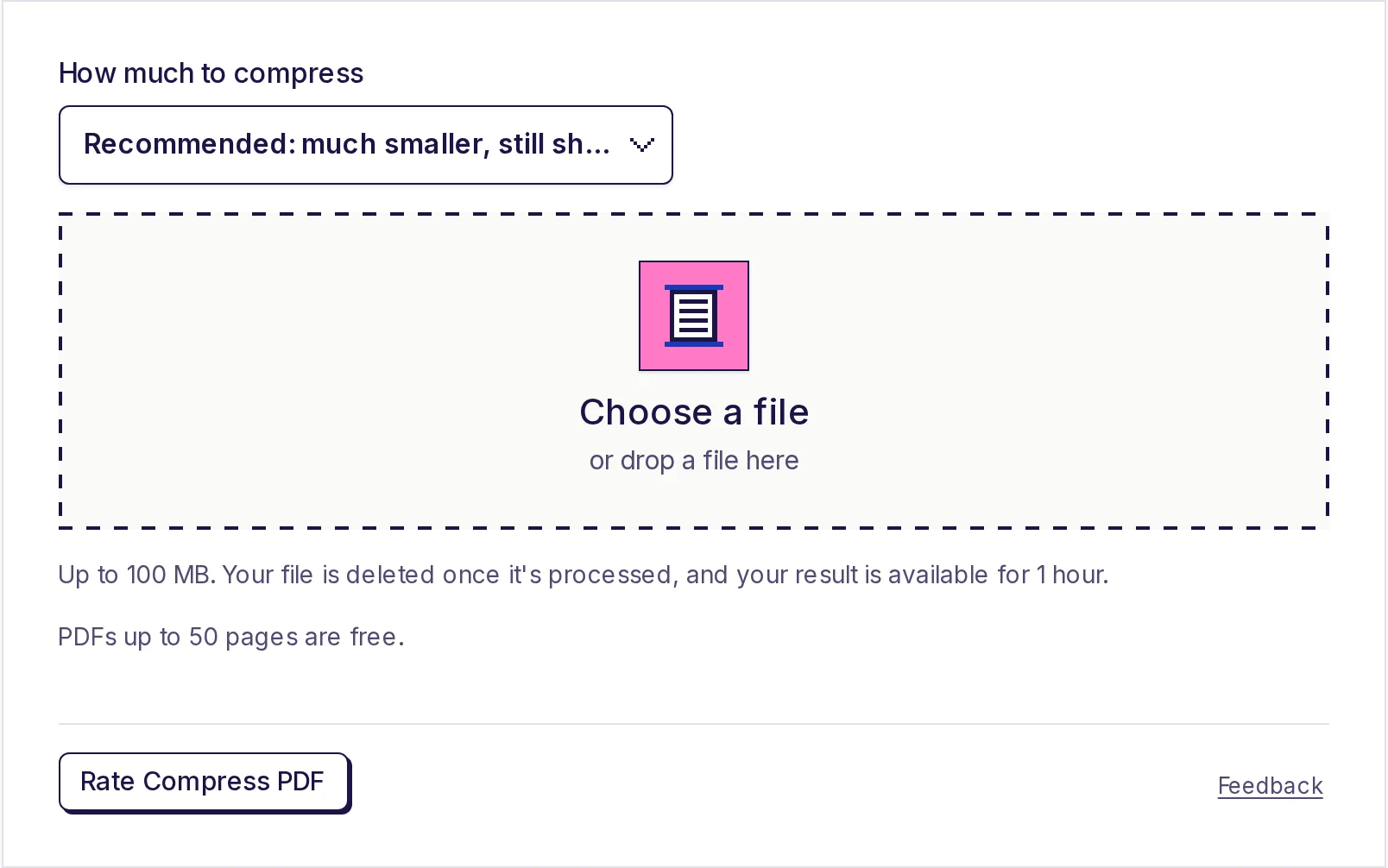
- Under Bao nhiêu đến compress, pick a level (see table below). Recommended là default.
- Nhấp Chọn a tệp và pick của bạn PDF (up đến 100 MB).
- Nhấp Start. A progress percentage shows while it works.
- Nhấp Download result. Your download là available cho 1 hour.
Which level đến choose
| Level | Điều gì it does đến images | Dùng it khi |
|---|---|---|
| Recommended | Keeps about 150 pixels per inch of page, good JPEG quality | Emailing documents people sẽ read on screen hoặc print at home. Best balance. |
| Light | Keeps about 200 pixels per inch, higher quality | The PDF sẽ be printed properly, hoặc has fine detail like small print in a ảnh |
| Strong | Keeps about 100 pixels per inch, lower quality | You need smallest possible tệp và pages là mainly cho reading on screen |
Only images là touched. Typed văn bản, lines, drawings và fonts là left exactly as they là at every level, so a contract với a few photos keeps perfectly crisp văn bản. Images that là already at hoặc below level's resolution aren't scaled down (though they may be re-saved more efficiently), và black-và-white scans that là already compact là left alone.
Try Recommended first. Mở result và zoom in on smallest văn bản in a scanned page. Nếu it's clear và tệp là small enough, bạn're done. Nếu it's still too big, try Strong; nếu it looks rough, try Light.
Nếu PDF có thể't get smaller
Some PDFs là already lean, usually ones that là mostly typed văn bản hoặc that were compressed before. Nếu compressing would save less than about a tenth of size, tool tells bạn PDF là already about as small as it có thể get, leaves it unchanged và doesn't count it against của bạn allowance.
Miễn phí ways đến get under limit
Compress PDF là most direct fix, but several miễn phí tools on EveryApp có thể also get a PDF under an email limit, và they run on của bạn device without uploading anything:
- Send it in parts. Split PDF into two hoặc three files với free PDF splitter và attach them đến separate emails. No quality là lost. See how to split a PDF into separate files.
- Leave out what isn't needed. Blank pages, duplicate scans, và terms và conditions pages all add size. Remove them với free PDF page remover.
- Rebuild a ảnh PDF smaller. Nếu bạn made PDF từ phone photos, compress photos với free image compressor (JPG, around 70% quality; it refuses photos above about 16.7 megapixels và doesn't open HEIC) và make PDF again với JPG to PDF converter. The scanning for online forms guide shows exactly how.
And nếu none of these suit, sharing a link từ a cloud storage service instead of attaching tệp avoids attachment limits altogether.
Miễn phí size, và what happens đến của bạn tệp
Compress PDF là miễn phí cho PDFs up đến 50 pages, với no daily limit. For bigger files, see Pro on pricing page.
Because compression runs on our servers, của bạn PDF là uploaded. It's deleted as soon as it's compressed, và smaller PDF là available đến download cho 1 hour, then deleted too. We don't look at, share hoặc reuse của bạn files.
Compress của bạn PDF now
Mở Compress PDF, keep Recommended level và download a PDF that fits in an email. Or split it với free PDF splitter và send it in parts.
Câu hỏi thường gặp
- Làm thế nào để make a PDF small enough đến email?
- Compress images inside it với Compress PDF on Recommended level. Scanned và ảnh-heavy PDFs often shrink by more than half. Alternatively, split it into parts với miễn phí PDF splitter.
- Will compressing a PDF make văn bản blurry?
- No. Typed văn bản, lines và fonts là left exactly as they là. Only scans và photos là resized và re-saved.
- Is Compress PDF miễn phí?
- Yes, cho PDFs up đến 50 pages, với no daily limit. Pro handles bigger files.
- Vì sao didn't my PDF get much smaller?
- It's probably mostly văn bản, which là already small. Nếu saving là under about 10%, PDF là left unchanged và doesn't count toward của bạn allowance.
- Which compression level should I use cho email?
- Recommended. It gives much smaller files while keeping scans readable và printable at home.
- Điều gì happens đến my PDF after I upload it?
- It's deleted as soon as it's compressed. The smaller PDF là available đến download cho 1 hour, then deleted.
Công cụ PDF
Dùng thử Nén PDF
Miễn phí, không cần đăng ký, không giới hạn mỗi ngày. Làm PDF nhỏ hơn để vừa giới hạn email và tải lên bằng cách thu nhỏ ảnh và trang scan bên trong.