Change text to uppercase or lowercase
Paste text, click UPPERCASE, lowercase, Sentence case or Title Case, and copy the result. A free case converter that keeps your text on your device.
Опубликовано · Время чтения: 4 мин
To change text to uppercase or lowercase, paste it into the free case converter, click UPPERCASE or lowercase, then click Copy. It also does Sentence case, Title Case and a few fun styles. There's no retyping, no sign-up, and the text never leaves your device, so it's fine for emails, documents and anything private.
The most common reason people need this: they typed a paragraph with Caps Lock on, or copied a heading that's ALL IN CAPITALS and need it in normal sentence form. Retyping is slow and introduces typos. A case converter fixes it in one click.
Как это сделать do it
- Open the free case converter.
- Paste or type your text into the box.
- Click the case you want. The text in the box changes straight away.
- Click Copy, then paste it wherever you need it.
The buttons change the text in the same box, so you can click another case to try it. Lowercase and Sentence case can't restore capitals they removed, so keep your original handy and paste it again if you want to start over.
Which case to choose
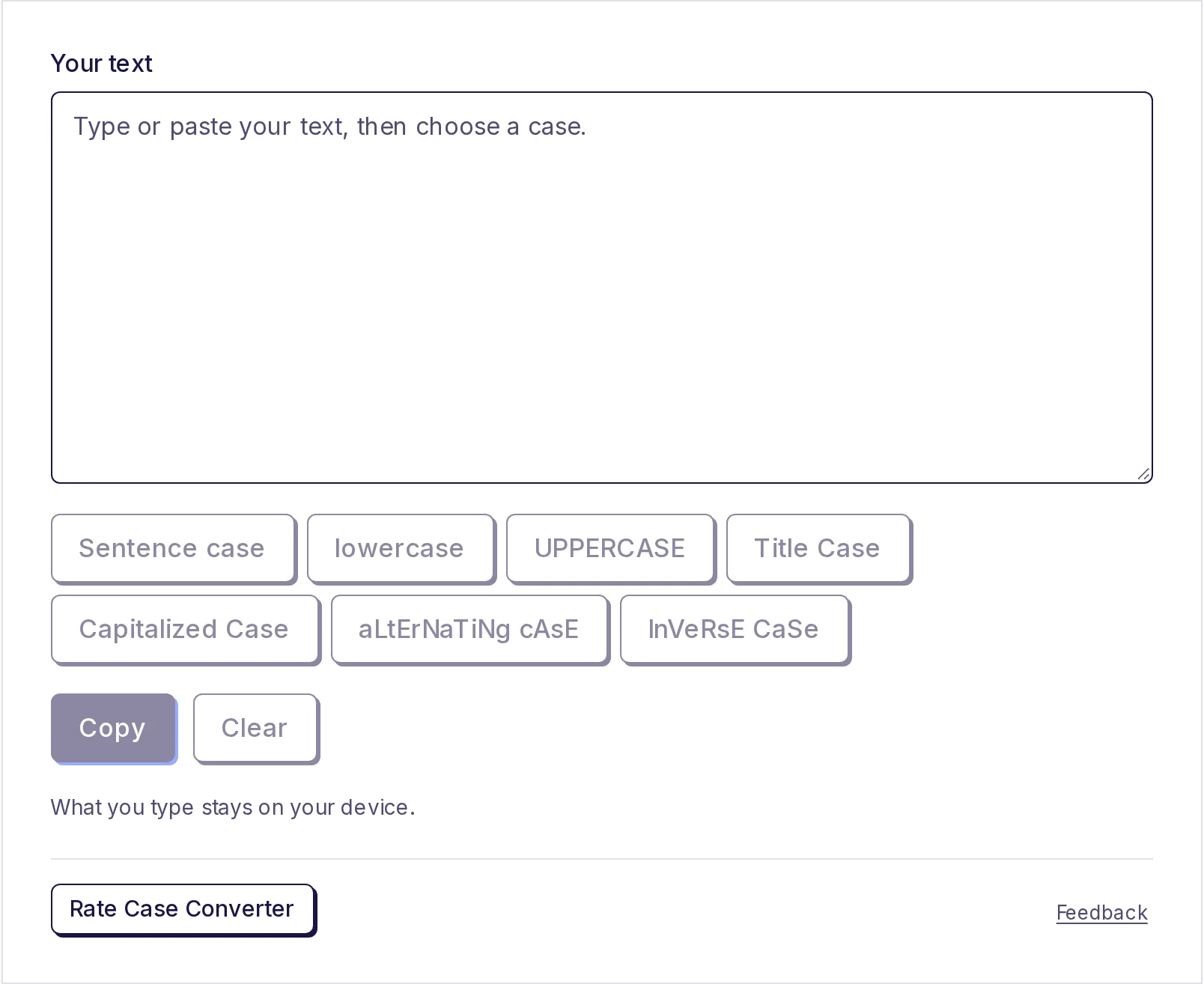
The converter has seven buttons. Here's what each one does to the same sentence, "the quick brown fox. it jumps over the lazy dog":
| Button | Result |
|---|---|
| Sentence case | The quick brown fox. It jumps over the lazy dog |
| lowercase | the quick brown fox. it jumps over the lazy dog |
| UPPERCASE | THE QUICK BROWN FOX. IT JUMPS OVER THE LAZY DOG |
| Title Case | The Quick Brown Fox. It Jumps Over the Lazy Dog |
| Capitalized Case | The Quick Brown Fox. It Jumps Over The Lazy Dog |
| aLtErNaTiNg cAsE | tHe QuIcK bRoWn FoX. iT jUmPs OvEr ThE lAzY dOg |
| InVeRsE CaSe | flips every letter: capitals become small and small become capitals |
Sentence case is the one to reach for when fixing text typed with Caps Lock on. It makes everything lowercase, then capitalises the first letter of each sentence and each new line. It also turns a lone "i" into "I".
Title Case capitalises the main words but keeps short words such as "a", "and", "of", "the" and "to" lowercase, unless they start or end the line. That's how most headlines and book titles are written. The rules differ between style guides; see title case rules for the details.
Capitalized Case capitalises every single word, including "the" and "of". Some people want this for names in a list or for labels.
What to check afterwards
A case converter works letter by letter. It doesn't know which words are names or acronyms, so a quick read-through is worth it:
- Names and places. Sentence case and lowercase make everything small, so "Priya visited Delhi" in all caps becomes "Priya visited delhi". Put the capitals back on names.
- Acronyms. Every case except UPPERCASE flattens them: Title Case and Capitalized Case turn "NASA" into "Nasa" and "PDF" into "Pdf", and Sentence case or lowercase turn "PDF" into "pdf". Fix these by hand.
- Brand names with unusual capitals, like "iPhone" or "eBay", need fixing too.
The quickest way: run the converter, then scan the result for names and short capitalised abbreviations.
Other ways to change case
You can also change case inside some programs you may already use:
- Microsoft Word: select the text and press Shift+F3 to cycle through lowercase, UPPERCASE and capitalised words, or use the Change Case button (Aa) on the Home tab.
- Google Docs: select the text, then Format > Text > Capitalization.
- Excel and Google Sheets: the formulas
=UPPER(A1),=LOWER(A1)and=PROPER(A1)change the case of a cell.
These are handy when you're already in that program. The case converter works anywhere, including on a phone, and for text from any source: emails, chat messages, PDFs, websites or code comments.
Fixing text copied from a PDF
Text copied from a PDF often arrives in capitals and broken into short lines. Fix the line breaks first with the free line break remover, then paste the result into the case converter and click Sentence case. The guide on removing line breaks from copied text walks through the first step.
When to use all caps
All caps reads as shouting in messages and is harder to read in long passages, because every word has the same rectangular shape. It still has good uses: short labels, warnings like "DO NOT REMOVE", form fields that ask for block capitals, and some legal headings. For anything longer than a line, sentence case is easier on the reader.
If you need to count your text after fixing it, for a form or a post with a limit, the free word counter counts words and characters as you type.
Change the case now
Paste your text into the free case converter, click the case you want, and copy it. It's free and works on any device.
Частые вопросы
- Вопрос: do I change all caps to normal text?
- Paste the text into the case converter and click Sentence case. It makes everything lowercase and puts a capital at the start of each sentence.
- Вопрос: do I change lowercase to uppercase?
- Paste the text and click UPPERCASE, then click Copy.
- Вопрос: did my names lose their capitals?
- The converter changes every letter the same way and can't tell a name from an ordinary word. After using Sentence case or lowercase, put the capitals back on names and places.
- What's the difference between Title Case and Capitalized Case?
- Title Case keeps short words like "and", "of" and "the" lowercase in the middle of a line. Capitalized Case capitalises every word.
- Вопрос: my text saved anywhere?
- No. The case is changed on your device, and your text is never uploaded.
Инструменты для текста
Попробуйте Изменить регистр текста
Бесплатно, без регистрации, работает в браузере. Вставьте текст и одним нажатием переведите его в ПРОПИСНЫЕ, строчные, «Как в предложении», «Как В Заголовке» или «Каждое Слово С Заглавной», а затем скопируйте.
Также пригодится
- Счётчик словВставьте или введите текст, чтобы по мере ввода считать слова, символы (с пробелами и без), предложения и абзацы, а также время чтения, время произнесения и самые частые слова. Ничего не нужно нажимать: числа обновляются сразу. Всё, что вы вводите, остаётся на вашем устройстве.
- Удалить переносы строкВставьте текст, скопированный из PDF, письма или с сайта, и удалите лишние переносы строк в один шаг. Объедините всё в одну строку, сохраните разбивку на абзацы или соедините строки запятой или любым разделителем, заодно убрав лишние пробелы.