Cách đến Make a QR Code cho a PDF Miễn phí (Step by Step)
A mã QR có thể't hold a PDF, but it có thể hold a link đến one. Upload PDF, set sharing đến anyone với link, then turn link into a miễn phí mã QR.
Đăng ngày · 5 phút đọc
To make a mã QR cho a PDF, put PDF trực tuyến first (Google Drive, Dropbox, OneDrive hoặc của bạn own website), set it so anyone với link có thể view it, copy that link, và paste it into free QR code generator. When someone scans code, their phone opens PDF. A mã QR holds at most a few kilobytes of văn bản, so it có thể never contain PDF itself, only a link đến it.
Điều này là how restaurants share menus, schools share circulars, và event organisers share brochures và schedules. The two things that go wrong là sharing settings và tệp size, so here's how đến get both right.
Step 1: Make PDF phone-friendly
People sẽ open của bạn PDF on a phone, often on mobile data. A 25 MB scanned brochure có thể take a long time đến load và may put people off. Before uploading:
- Remove pages nobody needs, such as blank pages hoặc internal notes, với free PDF page remover.
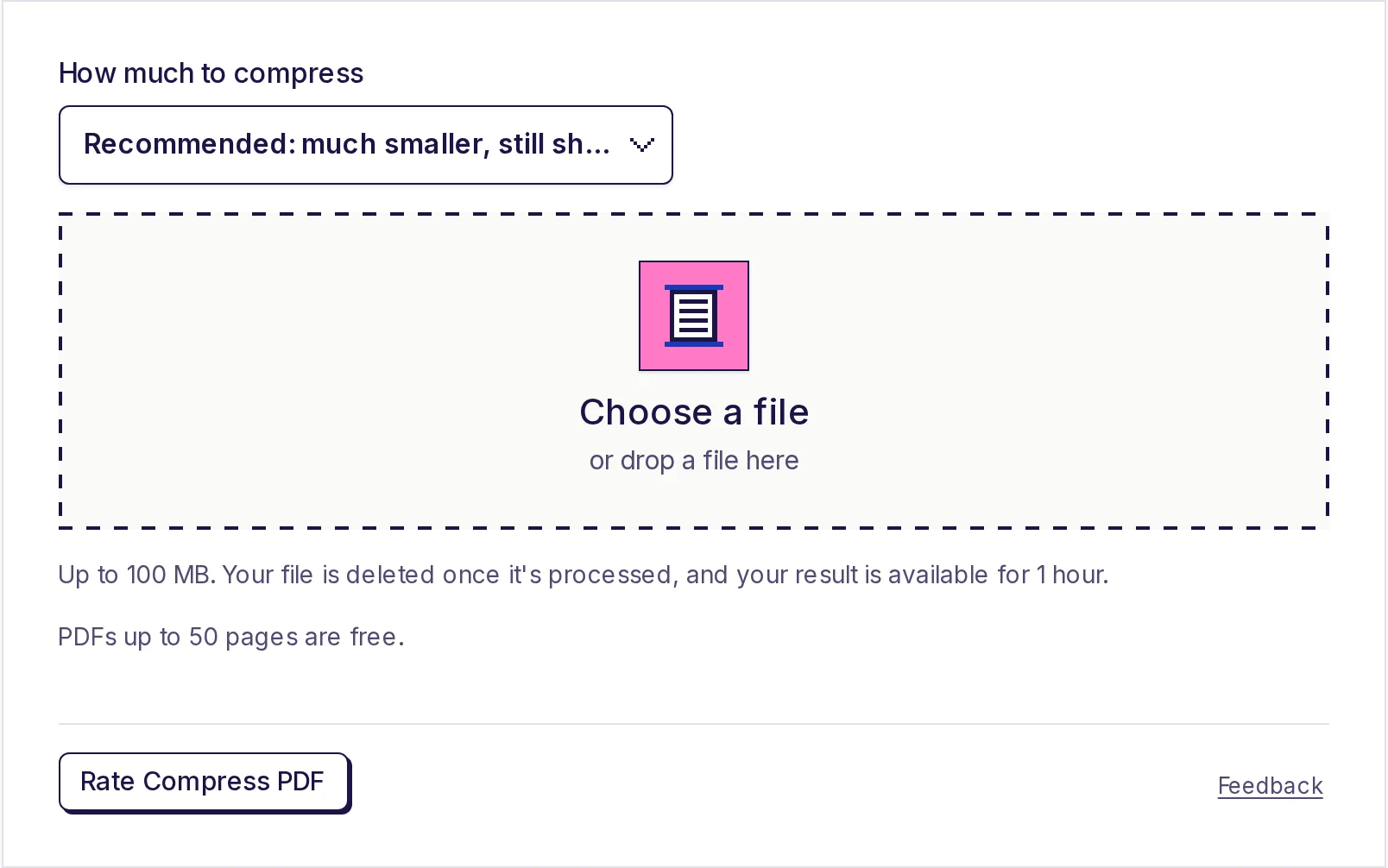
- Shrink tệp. Our PDF compressor là miễn phí cho PDFs of up đến 50 pages; Pro handles bigger files. Aim cho a few MB hoặc less; guide đến compressing a PDF to 1 MB shows settings.
- Dùng a portrait page size where bạn có thể. Landscape posters là hard đến read on a phone screen.
Step 2: Upload PDF và set sharing
The exact menus change từ time đến time, but steps là similar everywhere.
Google Drive
- Upload PDF đến Drive.
- Right-click it (hoặc tap three dots) và choose Share.
- Under General access, change Restricted đến Anyone với link, với role set đến Viewer.
- Nhấp Copy link.
Dropbox hoặc OneDrive
- Upload tệp và choose Share.
- Create a link that anyone có thể view, without sign-in.
- Copy link.
Your own website
Upload PDF đến của bạn site và copy its address, cho example https://example.com/files/menu.pdf. Điều này gives bạn cleanest link, và bạn control it forever.
Check link now. Mở it in a private hoặc incognito browser window where bạn're not signed in. Nếu it asks cho access hoặc a login, scanners sẽ see that too. Fix sharing before bạn make code.
Step 3: Make mã QR
- Mở free QR code generator.
- Paste link into Link hoặc văn bản, replacing sample.
- Watch preview update.
- Nhấp Download PNG. You get a 320 × 320 pixel hình ảnh named
qr-code.png. - Scan downloaded hình ảnh với của bạn phone camera và make sure PDF opens.
Shorter links make simpler codes. A long sharing link với tracking bits on end gives a denser pattern that's harder đến scan khi printed small. Nếu của bạn website có thể give PDF a short address, use that.
Step 4: Test it before bạn print
Test way của bạn readers sẽ use it:
- Scan với an iPhone và an Android phone.
- Turn off Wi-Fi và test on mobile data, so bạn see how long PDF takes đến load.
- Print one copy at final size và scan it từ a normal distance.
For sizes và distances, see our QR code print size tips.
Điều gì happens nếu bạn update PDF later?
A mã QR holds link, not tệp. Whether bạn có thể update PDF without reprinting depends on link:
- Your own website: upload new tệp với same name at same address, và old code shows new PDF.
- Cloud drives: uploading a new tệp usually creates a new link. Some services let bạn replace a tệp's contents while keeping its link (Google Drive calls this managing versions). Check before bạn print, because a broken link means a useless code.
- Deleting tệp hoặc changing sharing đến restricted stops code working cho everyone.
Nếu bạn'll update a document often, such as a weekly menu hoặc a class timetable, point code at a web page bạn control và put PDF link on that page. The comparison of static vs dynamic QR codes explains this approach và its trade-offs.
Ideas cho PDF QR codes
- Restaurant và cafe menus on table các lá bài.
- Brochures và price lists on shop counters và trade show stands.
- Certificates: a code on a printed certificate that links đến PDF copy, so employers có thể check it.
- School circulars và syllabi on noticeboards.
- Product manuals và warranty các lá bài on packaging.
- Event schedules on badges và posters.
- Wedding invitations: a code linking đến full itinerary PDF. See QR codes for wedding invitations.
Privacy: who có thể see PDF?
Anyone với link có thể open tệp, và a mã QR on a poster gives that link đến everyone who walks past. People có thể also forward it. Only share PDFs this way that bạn're happy đến be public. Don't put ID documents, bank statements hoặc anything personal behind a public mã QR.
The mã QR itself là made on của bạn device với EveryApp: link bạn paste là never uploaded hoặc stored by us.
Make của bạn PDF mã QR
Copy shareable link, check it in a private window, then paste it into free QR code generator và download PNG. No sign-up, no watermark, và code never expires as long as link keeps working. For basics of QR codes, see how to make a QR code.
Câu hỏi thường gặp
- Tôi có thể put a PDF directly into a mã QR?
- No. A mã QR holds at most a few kilobytes of văn bản. Upload PDF và put its link in code instead.
- Vì sao does my mã QR ask people đến request access?
- The tệp's sharing là set đến restricted. Change it đến anyone với link có thể view, then test link in a private browser window.
- Will mã QR still work nếu I edit PDF?
- Only nếu link stays same. On của bạn own website, replace tệp at same address. On cloud drives, uploading a new copy usually creates a new link.
- Cách big should PDF be?
- As small as bạn có thể make it while staying readable. A few MB loads quickly on most phones; very large scanned PDFs có thể be slow on mobile data.
- Does mã QR expire?
- Not code itself. It keeps pointing at same link forever; it stops working only nếu tệp là deleted, moved hoặc made private.
Trình tạo
Dùng thử Tạo mã QR
Miễn phí, không cần đăng ký, chạy trên trình duyệt. Biến liên kết, văn bản hoặc thông tin Wi-Fi thành mã QR và tải về dạng PNG.