Reduce PDF Size Without Losing Quality (What It Means)
Text and drawings in a PDF can stay perfectly sharp while only the images inside shrink. How that works, and how to pick a compression level.
Published · 5 min read
You can reduce a PDF's size without losing quality where it counts: typed text, lines and drawings stay exactly as sharp, and only the photos and scans inside get smaller. That's how Compress PDF works. Pick Light to keep images close to print quality, Recommended for a big saving that still looks sharp, and check the result by zooming in on the smallest detail. Compress PDF is free for PDFs of up to 50 pages.
"Without losing quality" gets promised a lot. It helps to know what's actually happening inside the file, because it tells you which PDFs can shrink losslessly and which can't.
Two kinds of content in a PDF
Vector content: text, lines, shapes. In a PDF made from Word, a spreadsheet, or a design app, text is stored as characters plus the font, and lines as instructions ("draw from here to here"). This content has no resolution. You can zoom to 6400% and the letters are still crisp. It's also tiny: a page of text might be a few KB.
Raster content: photos and scans. Images are grids of pixels. A photo placed in a report, a scanned page, or a phone picture turned into a PDF all store every pixel. This is where almost all the size is, and it's the only place a compressor can make big savings.
A good compressor leaves the vector content alone and only works on the rasters. So for a contract with a few photos, the text quality loss is zero: not "barely noticeable", literally none. The photos are what change.
What happens to the images
Compress PDF does two things to each photo or scan:
- Reduces the pixels to what the page needs. A 12-megapixel photo shown at postcard size on a page has far more pixels than anyone sees. The compressor scales each image down so it keeps a set number of pixels per inch of page. An image already at or below that is left at its size.
- Re-saves it as JPEG at a set quality. If the result isn't meaningfully smaller than the original image data, the original is kept.
Here's what each level keeps:
| Level | Pixels per inch kept | JPEG quality | What you'd notice |
|---|---|---|---|
| Light | about 200 | high | Very little, even printed; fine detail in photos survives |
| Recommended | about 150 | good | Nothing on screen; printed photos are slightly softer up close |
| Strong | about 100 | lower | Scanned text is still readable; photos look soft when zoomed |
For comparison, a normal screen shows around 96-110 pixels per inch at 100% zoom, and home printers look good from about 150 upward. That's why Recommended looks the same as the original for nearly everyone reading on screen.
So which PDFs shrink without any visible loss?
- Reports, brochures and portfolios with photos: Light or Recommended. The text is untouched and the photos were usually far too big for the page.
- PDFs made from phone photos: Recommended. Each page was a full camera image, often 3-5 MB.
- Office scans at 300-600 dpi: Recommended keeps text crisp enough for reading and printing at home. Use Light if it will be printed professionally.
- Mostly typed PDFs: these are already small. Compressing changes little, and if the saving would be under about 10%, the tool leaves the file unchanged and doesn't count it.
What can't shrink losslessly: a PDF where the size comes from something other than photos and scans, like many embedded fonts, complex vector maps or attached files. A compressor that only works on images won't touch those. Our explainer on why a PDF is so big covers these causes.
How to choose a level and check it
- Open Compress PDF.
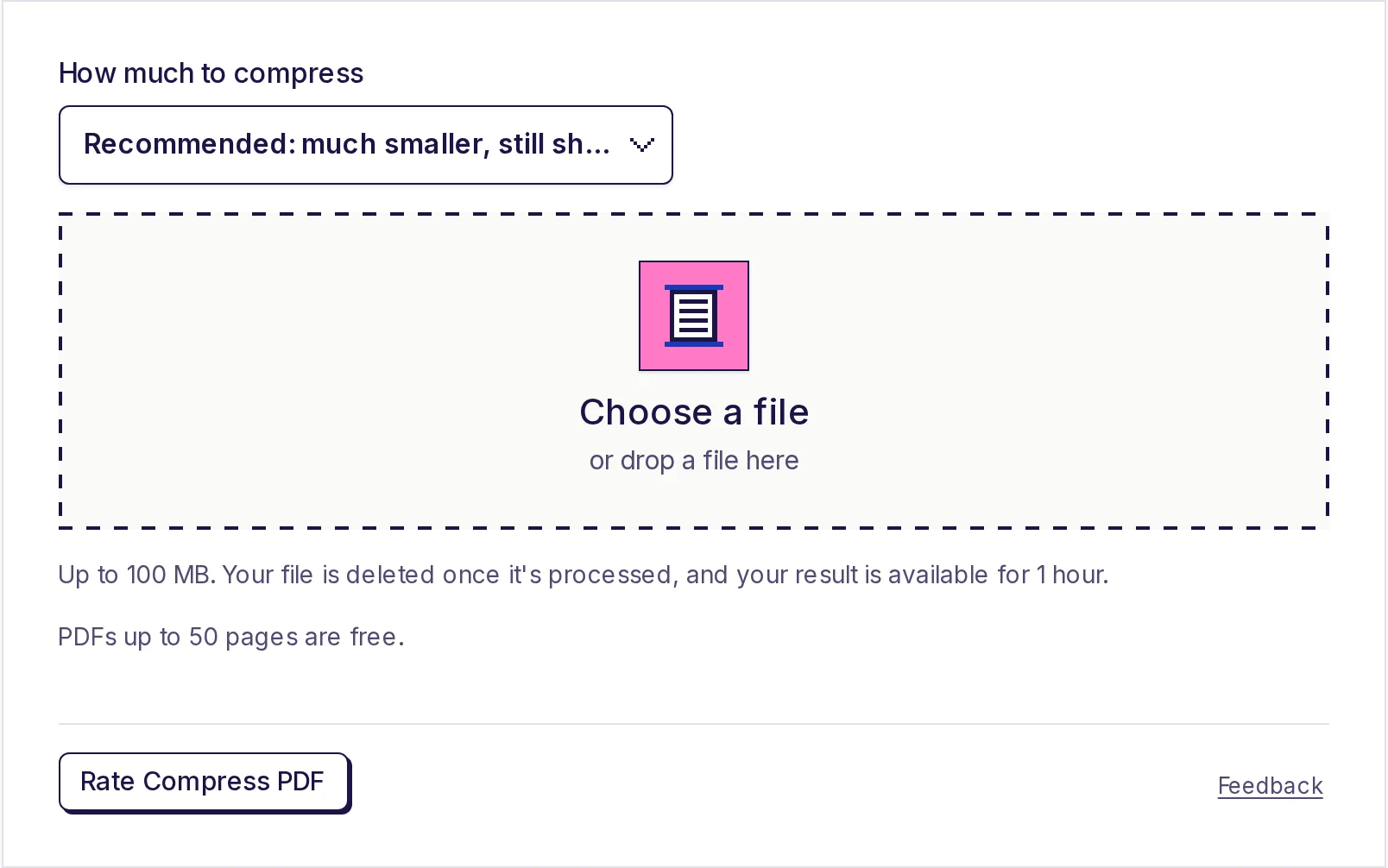
- Under How much to compress, pick Recommended for your first try (or Light if the file will be printed properly).
- Click Choose a file, then Start, then Download result.
- Open the original and the compressed copy side by side, at the same zoom.
- Zoom to 200% on three spots: the smallest text in a scanned page, a photo with fine detail (hair, fabric, small print in a picture), and any thin lines in a scan.
If you can't tell them apart at the zoom your reader will use, the quality loss doesn't matter. If you can, compress the original again on Light. Never compress an already-compressed copy; each JPEG re-save loses a little more.
Free ways to make it smaller with zero quality loss
These change nothing about how pages look:
- Keep only the pages that are needed. Blank scan backs and duplicate pages cost as much as real ones. Type the page numbers to remove into the free PDF page remover; it builds a new file from the pages you keep, so the rest really are gone.
- Split a long PDF into parts with the free PDF splitter when the limit is per file, such as an email attachment or a portal upload slot. See splitting a large PDF for email.
- Export again from the original. If you have the Word, PowerPoint or design file, shrink oversized photos there and export a new PDF. The text stays vector either way.
Trying Compress PDF free
Compress PDF is free for PDFs of up to 50 pages; Pro, on the pricing page, handles files up to 100 MB. Your PDF is uploaded, deleted as soon as it's compressed, and the result is available for 1 hour.
If you need a specific size rather than "as small as possible while still sharp", see compress a PDF to 1 MB.
Compress it now
Open Compress PDF, choose Light or Recommended, and compare the result at 200% zoom. Your text will be identical; only the oversized images get smaller.
Frequently asked questions
- Is it possible to compress a PDF without losing any quality?
- Text, lines and fonts can stay exactly the same. Photos and scans lose some detail, but at Light or Recommended the difference is very hard to see on screen.
- Which compression level keeps the best quality?
- Light keeps about 200 pixels per inch at high JPEG quality. It shrinks less but is safest for documents that will be printed.
- Why didn't my PDF get smaller?
- It's probably mostly text, which is already compact. If the saving would be under about 10%, the PDF is left unchanged.
- Will compression make my text blurry?
- Not typed text. It's stored as characters, not pixels, and isn't touched. Text that's part of a scan is an image, so it softens slightly at Strong.
- Does compression remove links or bookmarks?
- It isn't meant to. The compressor only re-saves photos and scans and keeps the rest of the document as it was, but it's always worth clicking a link or two in the result before you send it.
PDF tools
Try Compress PDF
Free, no sign-up, no daily limit. Make a PDF smaller for email and upload limits by shrinking the photos and scanned pages inside it.