How to Make an AI Voiceover for a Video (Script to MP3)
Turn a script into an MP3 voiceover for YouTube, slides or a tutorial: pick a voice and pace it with punctuation. Free for up to 1,000 characters.
Published · 5 min read
To make an AI voiceover, write the script, paste it into text to speech, pick one of the six English voices and download the MP3. Then drop the MP3 into your video editor or presentation under the visuals. Pacing comes from your punctuation: full stops make clear pauses, commas make short ones. It's free for up to 1,000 characters, about a minute of speech.
An AI voiceover is useful when you don't want to record your own voice, don't have a quiet room, or need to redo a line without re-recording everything: product demos, tutorial videos, slide presentations, explainer reels and training modules.
Step 1: Write for the ear
A voiceover script isn't an essay. A few rules make synthetic speech sound far more natural:
- Short sentences. Aim for 10 to 20 words. Long sentences with several clauses are where any voice starts to sound flat.
- One idea per sentence, in the order the viewer sees things on screen.
- Write numbers the way you want them said. "₹2,499" may be read differently than you expect; "two thousand four hundred and ninety-nine rupees" won't be. The same goes for dates, versions ("version 2.0") and units.
- Spell out tricky abbreviations or add how to say them: "the U-P-I app", "SQL, pronounced sequel".
- Read it aloud yourself once. If you stumble, a voice will too.
Step 2: Check the length
The text box takes up to 5,000 characters per job, which is about 5 minutes of speech. As a rough guide, 1,000 characters comes out at a little over a minute.
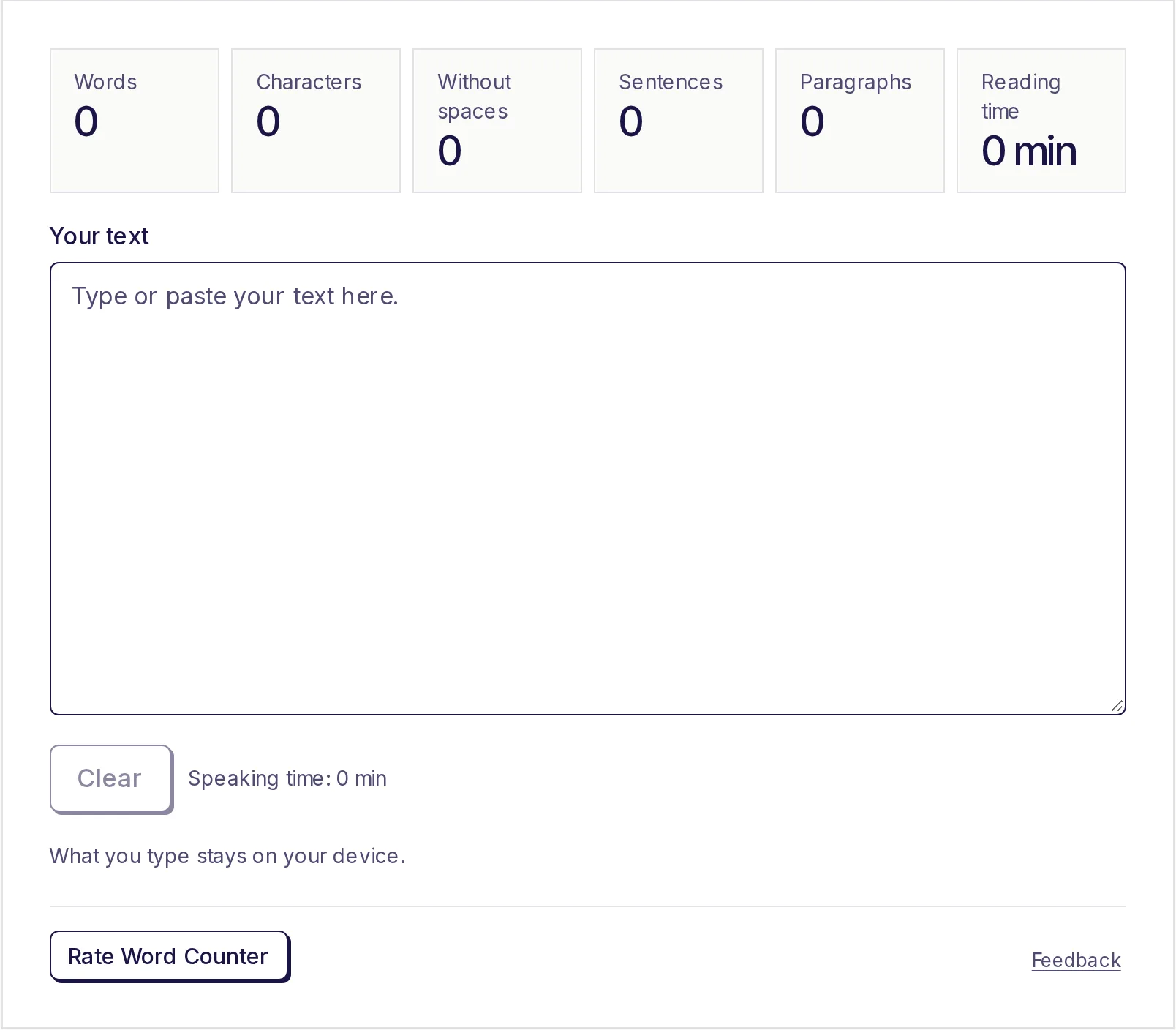
To match a video length, paste the script into the free word counter. Its speaking time uses 130 words per minute, a calm human pace; the AI voice is usually a little quicker, so treat it as an upper estimate. Our guide to how many words is a 5-minute speech has a table for other lengths.
For anything longer than 5,000 characters, split the script at a paragraph break and make two MP3s.
Step 3: Make the AI voiceover MP3
- Open text to speech.
- Choose a Voice:
- Heart (American English, female)
- Bella (American English, female)
- Michael (American English, male)
- Fenrir (American English, male)
- Emma (British English, female)
- George (British English, male)
- Paste your script into Your text. The counter below the box shows how many characters you've used against your limit.
- Press Continue, then Start.
- Press Download result to save the MP3. It's available for 1 hour.
Try two or three voices on your opening paragraph before generating the whole script. The difference in tone between voices is bigger than you'd expect, and the right one depends on the subject.
Pacing with punctuation
There's no speed slider, so punctuation is how you shape the delivery:
| You want | Write |
|---|---|
| A clear pause between ideas | End the sentence with a full stop |
| A short breath inside a sentence | Add a comma |
| A question's rising tone | Use a question mark |
| A list that sounds like a list | Separate items with commas, and end with a full stop |
| Emphasis on a key point | Give it its own short sentence. Like this. |
The text is read as sentences, with a small extra gap after each one. Blank lines and paragraph breaks don't add any extra pause on their own, so if you want a longer silence between sections (for a slide change, say), make two MP3s and leave the gap in your editor.
Step 4: Put it in your video
- Add audio to video: upload the video and the MP3, choose to replace the video's sound or mix the two, and download an MP4. The audio is cut or repeated to fit. It's free for a video up to 30 seconds.
- Video editors (desktop or phone): import the MP3, place it on the audio track, and cut or stretch your clips to match the narration. It's usually easier to fit visuals to the voice than the other way round.
- PowerPoint or Google Slides: one MP3 per slide works best, so make a separate short MP3 for each slide's notes.
- Background music: keep it well below the voice, especially under speech.
Then add captions. Plenty of people watch with the sound off, and captions also help viewers who are deaf or hard of hearing. Run the finished video through the subtitle generator for an SRT or VTT file; see how to add subtitles to a video.
Be honest about the voice
Every voice in the tool is a synthetic stock voice. None copies a real person, you can't upload or clone a voice, and the audio must not be used to impersonate anyone or mislead people.
Platforms have their own disclosure rules for AI content. YouTube's help page on altered or synthetic content (checked October 2026) says creators must disclose realistic AI content that makes a real person appear to say or do something they didn't. It doesn't spell out whether a stock narration voice needs a label, and rules change, so read the current policy for each platform you post on. Telling viewers "narration by an AI voice" in the description is a simple, honest habit either way.
Free length and Pro
Text to speech is free for up to 1,000 characters, about a minute of speech, with no daily limit. That's enough to compare voices on your opening lines. Full scripts, up to 5,000 characters per job, need Pro. Your text is deleted as soon as it's spoken, and the MP3 is kept for 1 hour.
Make your voiceover
Write short sentences, pick a voice, and let text to speech turn the script into an MP3 for your video. Your first 1,000 characters are free.
Frequently asked questions
- How do I make an AI voiceover for a YouTube video?
- Write the script, paste it into text to speech, choose a voice and download the MP3. Import it into your editor under the video and match the clips to the narration.
- Can I change the speed of the voice?
- There's no speed control. Shape the pacing with punctuation: full stops for clear pauses, commas for short ones, and shorter sentences for a slower feel.
- Which languages are available?
- English only, with four American and two British voices, female and male.
- Can I clone my own voice?
- No. Only the six stock voices are available, and no voice can be uploaded or copied.
- Do I have to say a video uses an AI voice?
- It depends on the platform and the content. YouTube requires disclosure for realistic content that makes a real person seem to say something they didn't; check each platform's current rules.
Audio tools
Try Text to Speech
Free, no sign-up, no daily limit. Paste up to 5,000 characters, pick one of six natural-sounding English voices, American or British, and download the speech as an MP3.
Also useful
- Subtitle GeneratorGenerate subtitles from a video or audio file automatically and download an SRT or VTT file, timed to the speech. Ready for YouTube, video editors and web players. The language is detected for you, and you can label who is speaking.
- Word CounterPaste or type your text to count words, characters (with and without spaces), sentences and paragraphs as you type, plus reading time, speaking time and your most used words. Nothing to click: the numbers update live. What you type stays on your device.