Free Markdown Cheat Sheet: Syntax and the HTML It Makes
Every Markdown basic on one free page: headings, bold, lists, links, images, tables, code blocks and task lists, with the HTML each one becomes.
Published · 5 min read
This Markdown cheat sheet covers the syntax you'll use 95% of the time, from headings and lists to tables, code blocks and task lists, and shows the HTML each one turns into. The examples follow GitHub-flavoured Markdown, the version used in README files, many blogs and note apps. To try any of them, paste it into the free Markdown to HTML converter: the preview and the HTML update as you type, and nothing leaves your device.
If you're still deciding whether to write in Markdown at all, start with Markdown vs HTML.
1. Headings
Put one to six # signs and a space at the start of a line:
# Page title
## Section
### Subsection
HTML: <h1>Page title</h1>, <h2>Section</h2>, <h3>Subsection</h3>.
Tips: always add the space after the #, use only one H1 per page, and don't skip levels (H2 then H4) just to get smaller text. Screen readers and search engines use the heading order as an outline.
2. Bold, italic and strikethrough
| Markdown | HTML |
|---|---|
**bold** |
<strong>bold</strong> |
*italic* |
<em>italic</em> |
***both*** |
<em><strong>both</strong></em> |
~~deleted~~ |
<del>deleted</del> |
Underscores (_italic_, __bold__) work too, but asterisks are safer inside words.
3. Paragraphs and line breaks
This is the rule that catches everyone. A single line break inside a paragraph is ignored:
line one
line two
becomes a single <p> paragraph, which a browser shows as "line one line two". To start a new paragraph, leave a blank line. To force a line break without a new paragraph, end the line with two spaces, which gives line one<br>line two. A plain <br> tag also works in most places.
Text pasted from a PDF often has stray single line breaks; they do no harm in Markdown, but if you need clean lines elsewhere the free line break remover fixes them.
4. Lists
Bullets use -, * or +; numbered lists use 1.. Indent two spaces to nest:
- Tea
- Coffee
  - Filter
  - Espresso

1. Boil water
1. Add leaves
1. Wait 3 minutes
HTML: <ul><li>Tea</li><li>Coffee<ul><li>Filter</li>...</ul></li></ul> and <ol><li>Boil water</li>...</ol>.
Tip: you can number every item 1. and the HTML list still counts 1, 2, 3. That makes reordering painless.
5. Links
| Markdown | HTML |
|---|---|
[EveryApp](https://everyapp.pro) |
<a href="https://everyapp.pro">EveryApp</a> |
<https://everyapp.pro> or a bare https://everyapp.pro |
A clickable link showing the address |
Keep link text descriptive ("download the form" rather than "click here"). If a URL contains spaces or brackets, encode them first; the free URL encoder does it.
6. Images
Same as a link with ! in front:

HTML: <img src="bike.jpg" alt="Red bicycle against a wall">. The text in square brackets becomes the alt text, which screen readers announce, so describe the picture. Markdown can't set image width; use an HTML <img> tag if you need that.
In EveryApp's converter, the preview only shows images stored on the page itself for safety, but images from other websites are still kept in the HTML you copy.
7. Code
Inline code uses single backticks: `npm install` becomes <code>npm install</code>.
For a block, put three backticks on the lines before and after, and optionally name the language for syntax colouring:
```js
let total = price * 1.18;
```
HTML: <pre><code class="language-js">let total = price * 1.18;</code></pre>. Inside code, Markdown symbols are left alone, so it's the place for anything with * or _ in it.
8. Blockquotes and dividers
> Quoted text becomes <blockquote><p>Quoted text</p></blockquote>. Three dashes on their own line, ---, become a horizontal rule, <hr>. Leave a blank line above ---, or the line before it can turn into a heading.
9. Tables
Pipes separate columns, and a row of dashes separates the header. Colons set alignment:
| Item  | Qty |
| :---- | --: |
| Tea   |   2 |
| Sugar |  10 |
HTML: a <table> with a <thead> for the first row, <th align="left"> for Item and <th align="right"> for Qty. The columns don't need to line up in your source; the spacing above is just for readability. Tables can't hold lists or multiple paragraphs in a cell; switch to HTML if you need that.
10. Task lists
- [x] Book tickets
- [ ] Pack charger
On GitHub and many note apps these show as checkboxes. In HTML they're <input type="checkbox"> elements inside list items. EveryApp's converter strips form elements, including these checkboxes, from its output for safety, so the items come through as a plain bulleted list.
11. Escaping symbols
To show a literal *, _, # or backtick, put a backslash before it: \*not italic\* shows the asterisks as plain characters instead of making the text italic. If you need < or & to appear as text in HTML, the HTML entity encoder converts them to < and &.
12. Habits that prevent broken Markdown
- Leave a blank line before and after headings, lists, tables and code blocks.
- Use the same bullet character throughout a list.
- Preview before you publish. Small slips (a missing space after
#, an unclosed backtick) are obvious in a preview and invisible in the source. - Check the word count of a README or post in the free word counter if you have a length target.
Try the cheat sheet examples now
Paste any example above into the free Markdown to HTML converter (press Clear first, as the box starts with a sample), switch between Preview and HTML, then Copy HTML or Download .html. It's free, needs no sign-up, and scripts are removed from the output so it's safe to paste into a page.
Frequently asked questions
- How do I make a new line in Markdown?
- Leave a blank line to start a new paragraph. For a line break inside a paragraph, end the line with two spaces or use a
<br>tag. - How do I make a table in Markdown?
- Write the header row with pipes between columns, then a row of dashes such as
| --- | --- |, then one line per row. Colons in the dash row set left, centre or right alignment. - Can I use HTML inside Markdown?
- Usually yes. Most converters pass simple HTML like
<br>,<sup>or<img width="300">straight through. Our converter removes scripts, forms and embedded frames for safety. - What is GitHub-flavoured Markdown?
- An extended version of Markdown that adds tables, task lists, strikethrough, fenced code blocks and automatic links. It's what most README files and many blogs use.
- Why isn't my heading showing as a heading?
- Check for a space after the
#signs and a blank line above.#Headingwithout the space stays as plain text.
Text tools
Try Markdown to HTML
Free, no sign-up, works in your browser. Type or paste Markdown and get clean HTML instantly, with a live preview.
Also useful
- HTML Entity Encoder and DecoderEncode text into HTML entities so it shows safely on a web page, or decode entities like &, é and é back into readable text, as you type. Choose how much to encode and whether to use named or numbered entities.
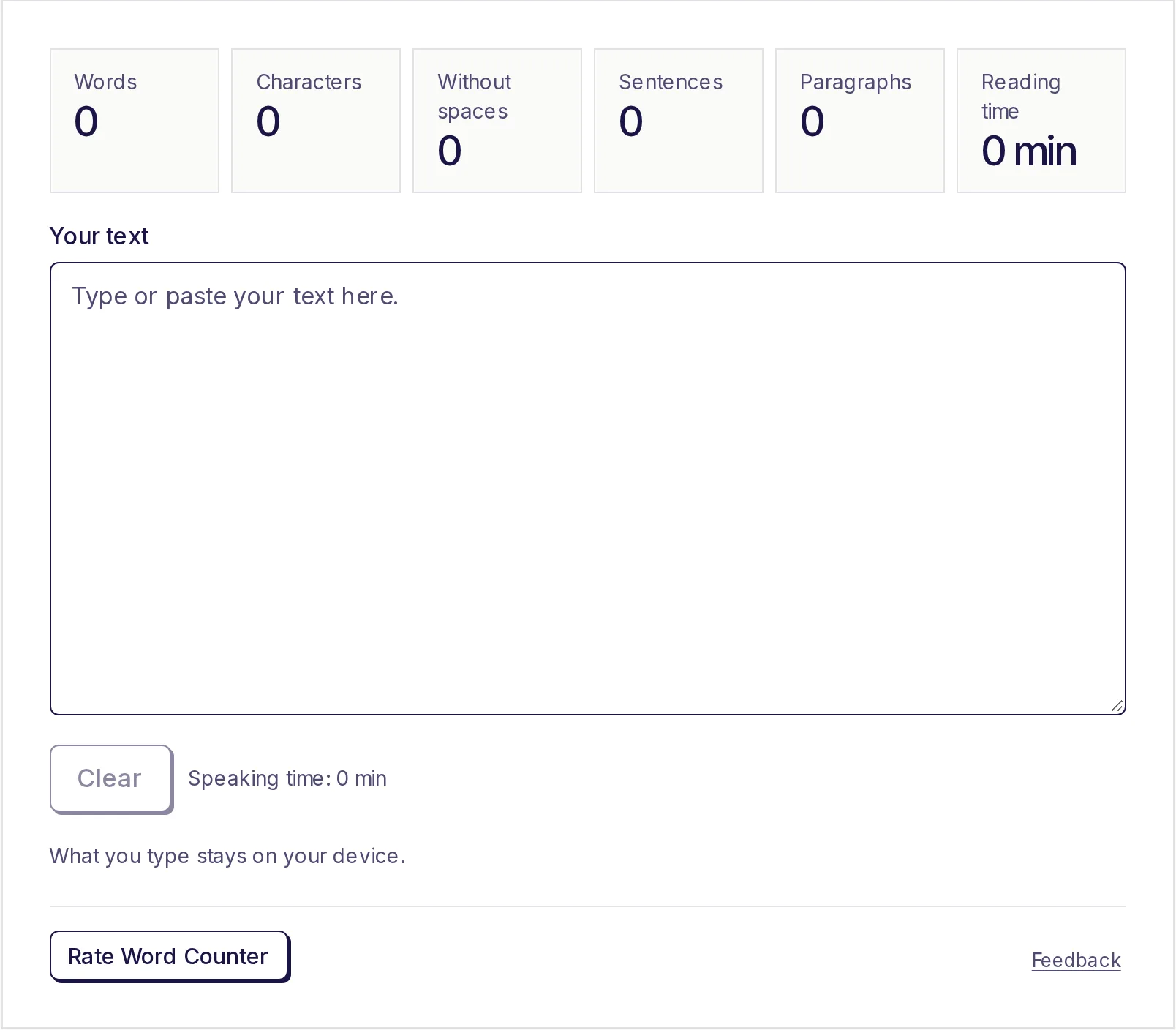
- Word CounterPaste or type your text to count words, characters (with and without spaces), sentences and paragraphs as you type, plus reading time, speaking time and your most used words. Nothing to click: the numbers update live. What you type stays on your device.